
Unlimited qualified signatures, flat fee. Now available internationally.
•
7 min
Read more



Reading time:

Date of publication:


A signature in the wrong place? That means another round of correction requests, and sometimes the whole workflow starting again. With Autenti you decide before sending where each person signs.
Key Takeaways:
With a one-page document and a single signer there is little room for error. With fifteen pages and several signatures, each in a different place, mistakes come easily.
You usually handle it manually: you write in the email where each person should sign, or you call and explain. With five signers that is at least five messages. And there's still no guarantee that nobody signs outside the intended space.
Where someone places their electronic signature does not affect its validity. The problem starts when a counterparty, a public authority or an internal procedure requires the signature in a specific place. The contract or application then goes back for correction, and everyone signs again, including those who got it right the first time.
The problem is not with the signers. The instruction on where to sign lives outside the document instead of inside it. See this in action below.
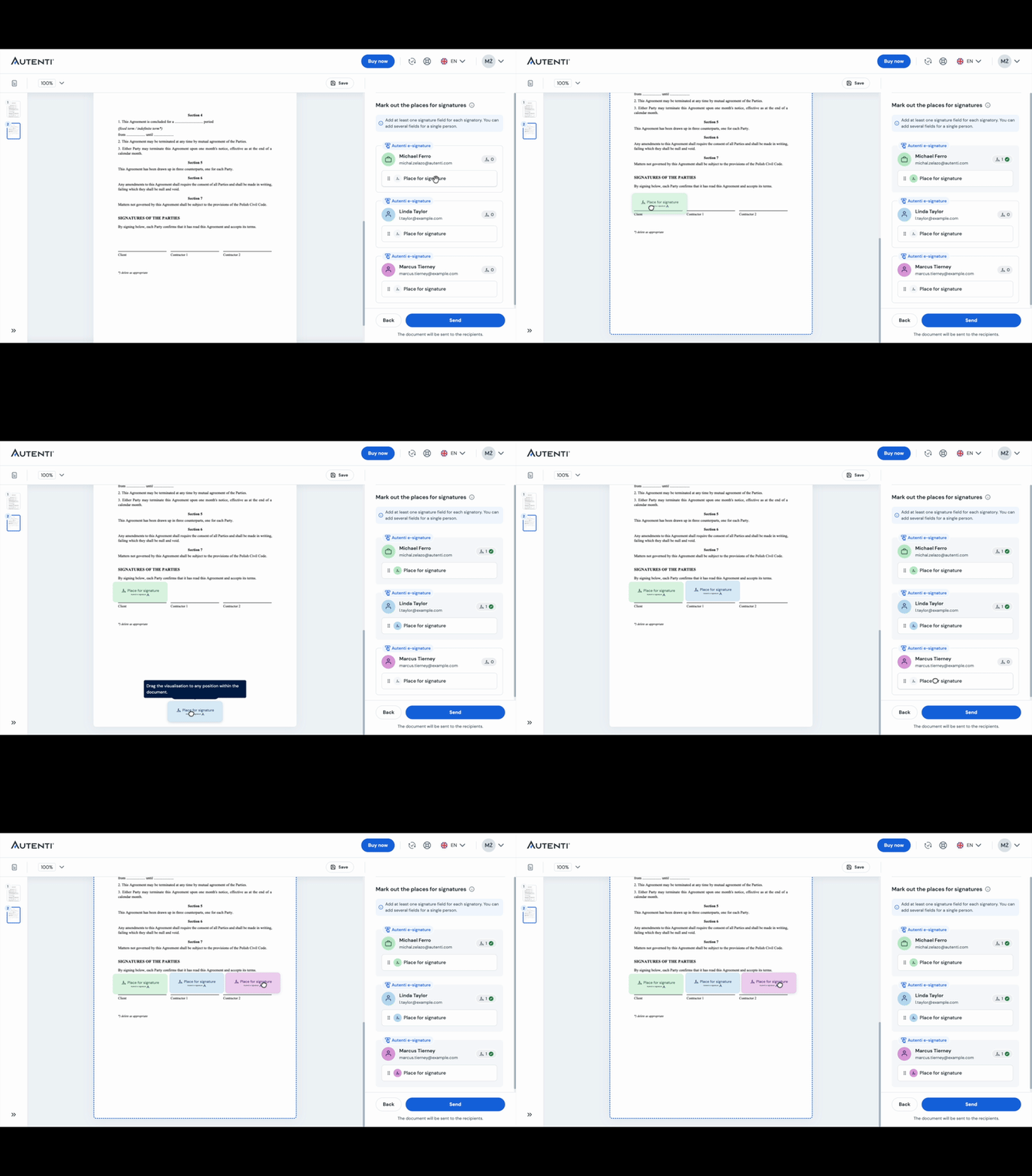
Prevent the problem before it appears. Every signer you add gets their own field, which you position while preparing the document. You do it once and you do not have to explain anything to anyone.
Add the document and the signers
You create a new document or upload a file you prepared earlier, and indicate who is to sign it.
Assign each person their field
You place the signature field where the signature should appear and assign it to a specific person. If there are five signatures, you set five fields, on whichever pages you need them to appear.
Send the document
Everyone receives the same document but sees their own signature field in it. No searching, no guessing, no asking where to sign.
You prepare the document and you know how the final version should look, so you decide where every signature appears. The instruction on where to sign is now part of the document.
This is easiest to show on a document signed by people from different departments. On the supplier side, the framework agreement is signed by the account manager and the legal team. On the client side, by procurement and a board member. The fifth signature goes on an annex.
Without assigned fields, every person reads the document and decides for themselves. One signs on page two, where their department is mentioned, another on page 15 instead of 14, and the annex is left unsigned because nobody knew it needed a signature as well.
With assigned fields you make that decision once, while preparing the document. Five people get five places, each assigned to a specific person.
You can also set the order in which the document reaches them. If procurement is to sign only after the legal team, the document travels in that sequence. The field shows where to sign, the order shows when.
Sometimes a document has to be reviewed and accepted before it goes out for signature, by a manager or by a lawyer from an external firm. That is a separate role in the process: initials.
By assigning signature fields you decide where each signature appears. The signer chooses how it looks: one of four ready-made forms, such as an initials-based style or a handwriting-style signature, or one they create or upload themselves.
You can also leave the choice of position to the signer. With multi-visualisation they can then add up to 50 graphic markers in a single process. This helps with routing sheets and with forms that have many fields.
A Signature Card is attached to the document as well. It holds information about the signers and the course of the process. The graphic visualisation does not replace the electronic data that makes the signature verifiable.
Do I have to set the fields every time?
Yes, if you select “Sender (You)” in the “Determining the positions of signatures” section. You then set them separately for each document. If you leave the “Signer” option selected, the signer chooses the position and you do not have to set anything.
What if more than five people sign the document?
The number of fields matches the number of signatures. Every person is assigned their own place to sign.
Can a signer sign outside the assigned field?
No. Placing a signature field in a specific part of the document means the assigned person can only sign there.
How is placing initials different from signing?
Placing initials is a separate role in the process: the person you nominate accepts or rejects the document before it goes out for signature. Initials is not a signature and serves a different purpose.
Does the signer need an Autenti account?
No. Your recipient opens the document from the link you send by email and signs it without creating an account or installing anything.
When the instruction on where to sign sits in the document itself, you do not need follow-up messages or clarifications. You also avoid sending the document a second time to everyone, including the people who signed correctly the first time.
The document comes back to you signed as it was prepared. One decision made before sending saves you the trouble that usually follows afterwards.
Try signature fields on the next document you plan to send. Upload it to Autenti, add the signers, set where and in what order they sign, then send. You will see the difference with the very first document.
The people who sign do not create accounts and install nothing. They open the link from the email and sign.
If documents in your company travel through several departments, with signing order, approvals and annexes, book a demo. We will show you how to set up that workflow on your own documents.

Read more
Read more
Read more